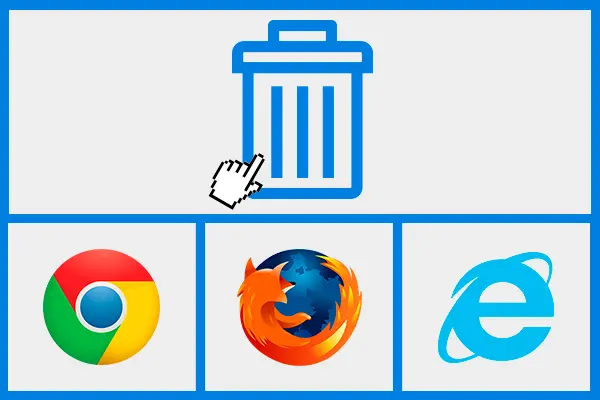
Clearing cached files can help when a website shows an outdated design, a broken script or content that has already changed on the server. It should be a diagnostic step, not the default response to every problem.
Start with the smallest intervention
- Reload the page normally.
- Try a private or incognito window to compare behavior.
- Use a hard refresh to request current page assets.
- Clear data for the specific site before deleting the entire browser cache.
Understand the effect
Removing cached files may make the next visit slower because resources must be downloaded again. Clearing cookies or site storage is a separate action and can sign you out or remove saved preferences.
If the issue continues
Test another browser or network and check whether the problem affects other users. Developers should review cache headers, service workers, content delivery networks and asset versioning.
Browser menus change over time; use current official instructions for the exact browser and device when you need a full reset.